Use this free geotag photo tool to add GPS coordinates to images, edit photo metadata, and prepare files for local SEO, Google Business Profile, or photography projects. Everything runs in your browser and stays on your device.
Short answer: To geotag photos online, upload your image, choose a location on the map, then download the file with updated EXIF GPS latitude and longitude fields.
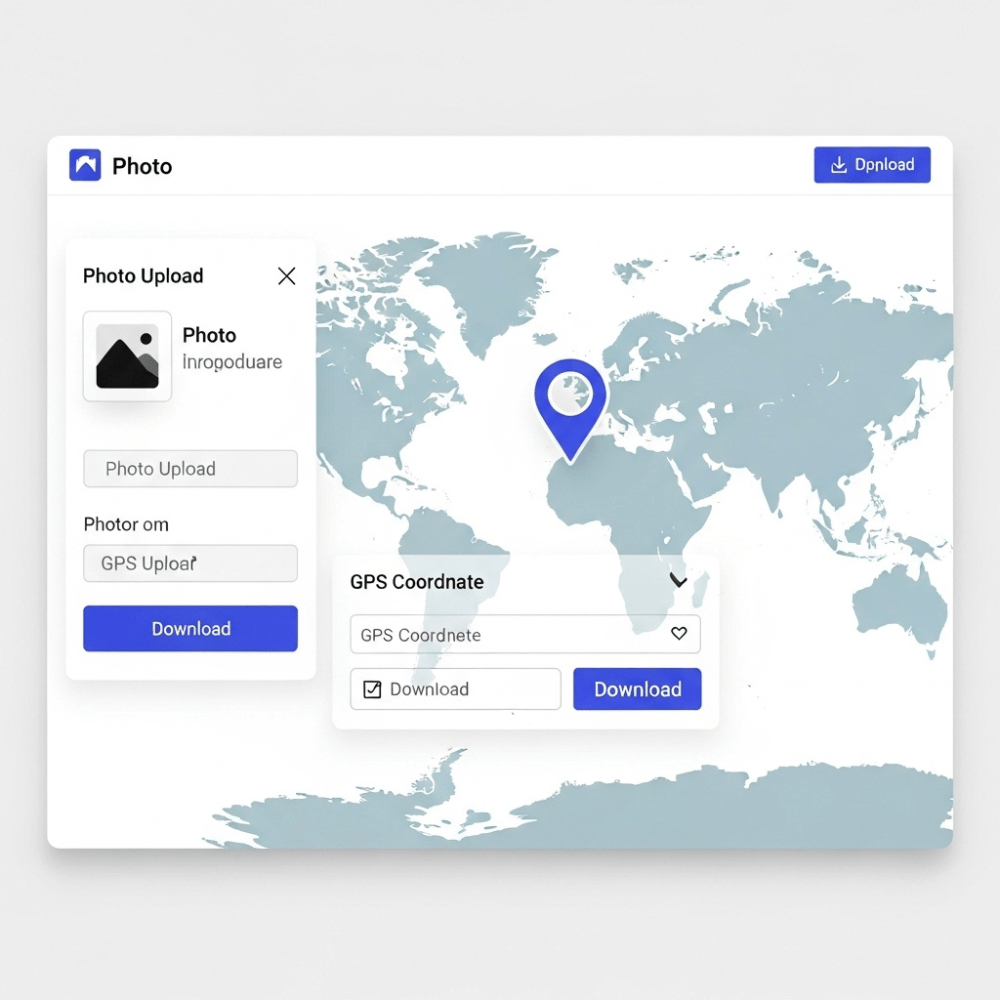
How to geotag photos online with this GPS photo editor
1. Upload your image
Choose a JPG, PNG, or WebP file from your device. You can upload up to 6 images at once to batch geotag photos and update EXIF data in a single pass.
2. Select a location on the map
Use the interactive map to drop a pin exactly where the photo should be geotagged. You can zoom in for street level precision and place the marker where the picture was taken to add GPS to the photo.
3. Find geo coordinates automatically
If you know the exact address, use the search bar to find it quickly. The tool will automatically fetch the latitude and longitude so you do not have to copy GPS values by hand.
4. Edit photo metadata fields
Update EXIF and IPTC title and description fields so your image metadata is clean and descriptive. This works as a simple image metadata editor so you can add metadata to the image at the same time as the GPS tag.
5. Download your updated photo
Once you are happy with the location and metadata, click download. Your image is saved with new EXIF GPS data embedded, ready for local SEO, Google Business Profile, or photo archiving.
What this geotag tool and image metadata editor does
Edit photo metadata: Change EXIF and IPTC title, description, and basic keyword fields so images are easier to search and sort.
Add or update GPS coordinates: Write precise latitude and longitude tags into your photos with a visual map based editor.
Drag pin map interface: Select the location by moving a pin on the map instead of typing raw GPS values.
Manual coordinate entry: Paste exact GPS numbers into the EXIF GPS editor when you already have coordinates.
Batch friendly: Upload up to 6 images at once so you can use the tool as a light bulk EXIF editor for small sets.
JPG, PNG, and WebP support: Geotag image files in the most common web and camera formats.
Free to use: No account and no subscription required.
Find photo location and view EXIF data online
If you are not sure whether a file is already geotagged, first view EXIF data online with a metadata viewer. You can open an image, check GPS latitude and longitude fields, and confirm whether the file already contains location information.
To find photo location from metadata, upload an image to any EXIF viewer and check the GPS values. If there is no location, come back to this geotag photo tool, add GPS coordinates in a few clicks, and download a new version of the file.
Why geotagging helps SEO and local visibility
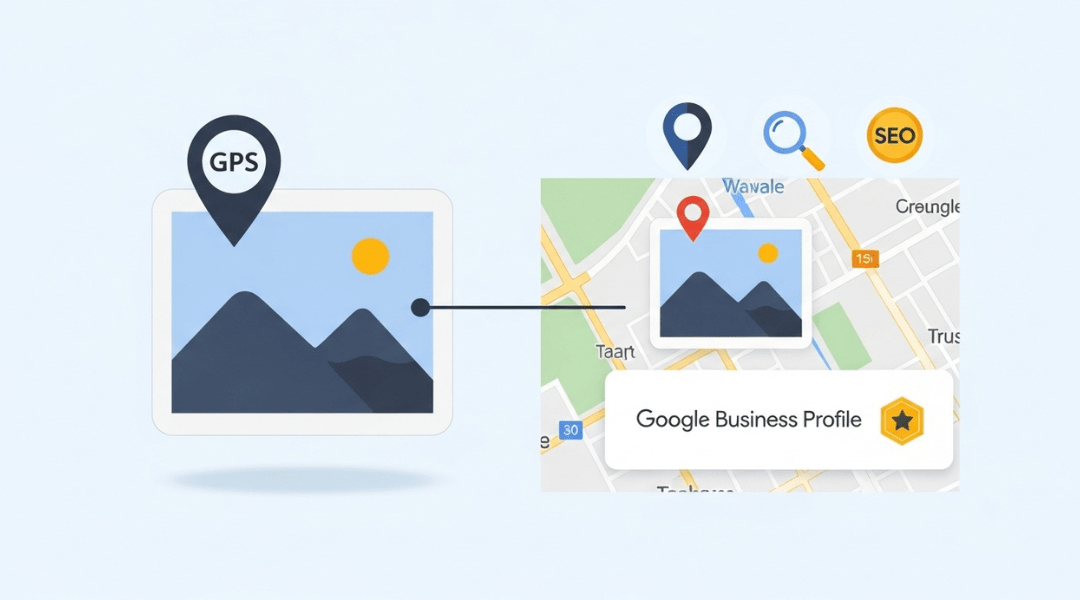
If you work on local SEO, real estate listings, or visual content for local businesses, geotagging photos can support relevance and clarity. It connects images to the right service area or business location and keeps your visual assets aligned with your Google Business Profile and Maps presence.
When you add location to photos and keep metadata consistent across your site, listings, and profiles, it is easier for search engines and users to understand where you actually work. This can support stronger local results when users search for services in a specific area.
Your files never leave your browser
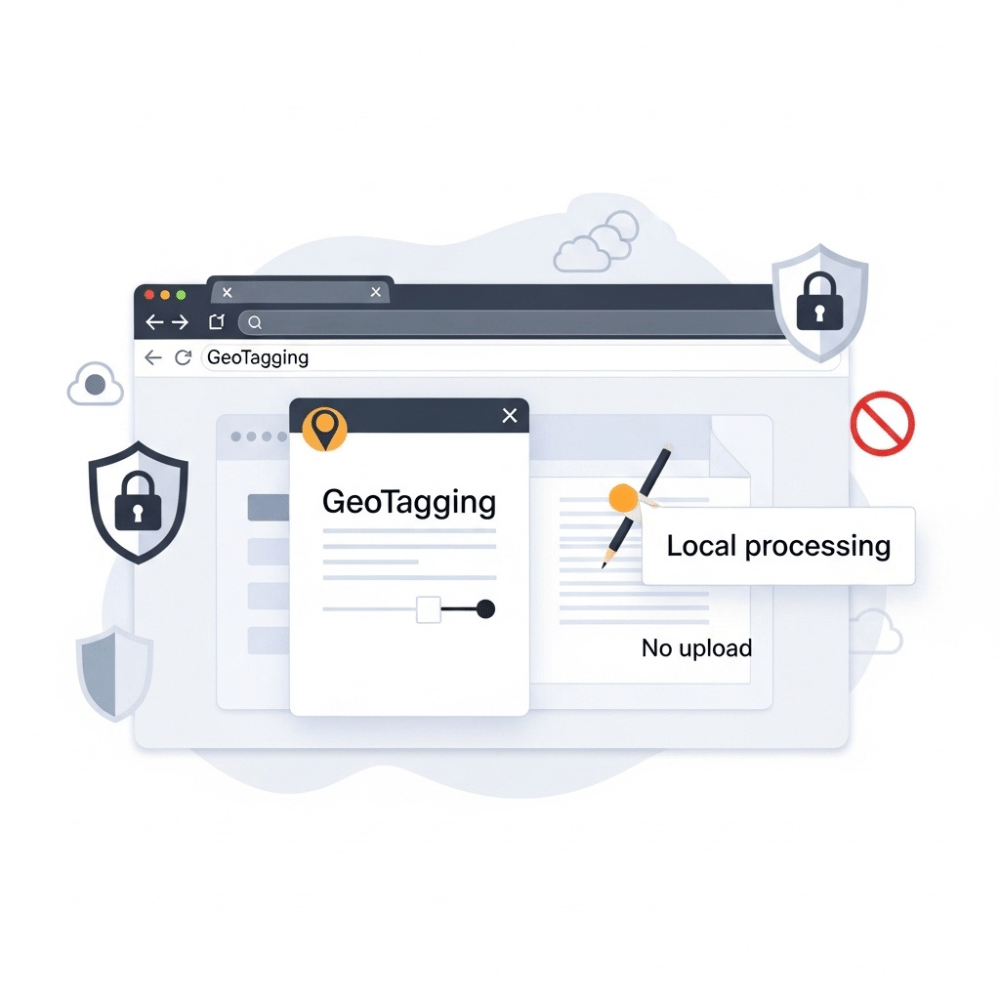
This tool runs entirely in your browser. Images are not uploaded to a server, so you keep full control of your files and their EXIF or GPS data. Once you close the tab, the session is gone.
Frequently asked questions
How do I geotag photos online with this tool?
Upload one or more images, drop a pin on the map where the photo was taken, then download the updated files. The tool writes GPS latitude and longitude values into the EXIF GPS fields so your photos are geotagged.
How can I add a location or GPS to a photo?
To add GPS to a photo, open it in this geotag image online tool, search for the address or place name, confirm the pin on the map, and save the image. The location is stored in the file as GPS metadata.
How do I edit photo metadata like title, description, and GPS?
Use the form under the map to edit photo metadata. You can update title and description fields and adjust the GPS coordinates before downloading. This works as a simple image metadata editor and EXIF editor online for basic fields.
How can I find photo location and view EXIF data online?
To find photo location, open the image in any EXIF viewer and look for GPS latitude and longitude values. If GPS tags are present, you can see roughly where the picture was taken on a map.
Does geotagging help with SEO and Google Business Profile?
Geotagging alone will not rank a business, but it can support local relevance and consistency. Clean, descriptive metadata, correct GPS tags, and strong on page and profile content together help users and search engines trust what they see.
What metadata does your geotagging tool support?
The tool supports standard EXIF GPS tags for latitude and longitude and basic IPTC style text fields for title and description. You can combine it with an EXIF viewer or other metadata tools when you need a deeper edit.