
An unverified Google Business Profile does not exist to your customers.
It cannot show in the local map pack. It cannot generate calls. It cannot drive directions. Until your profile is verified, every customer searching for your service in your area is finding someone else.
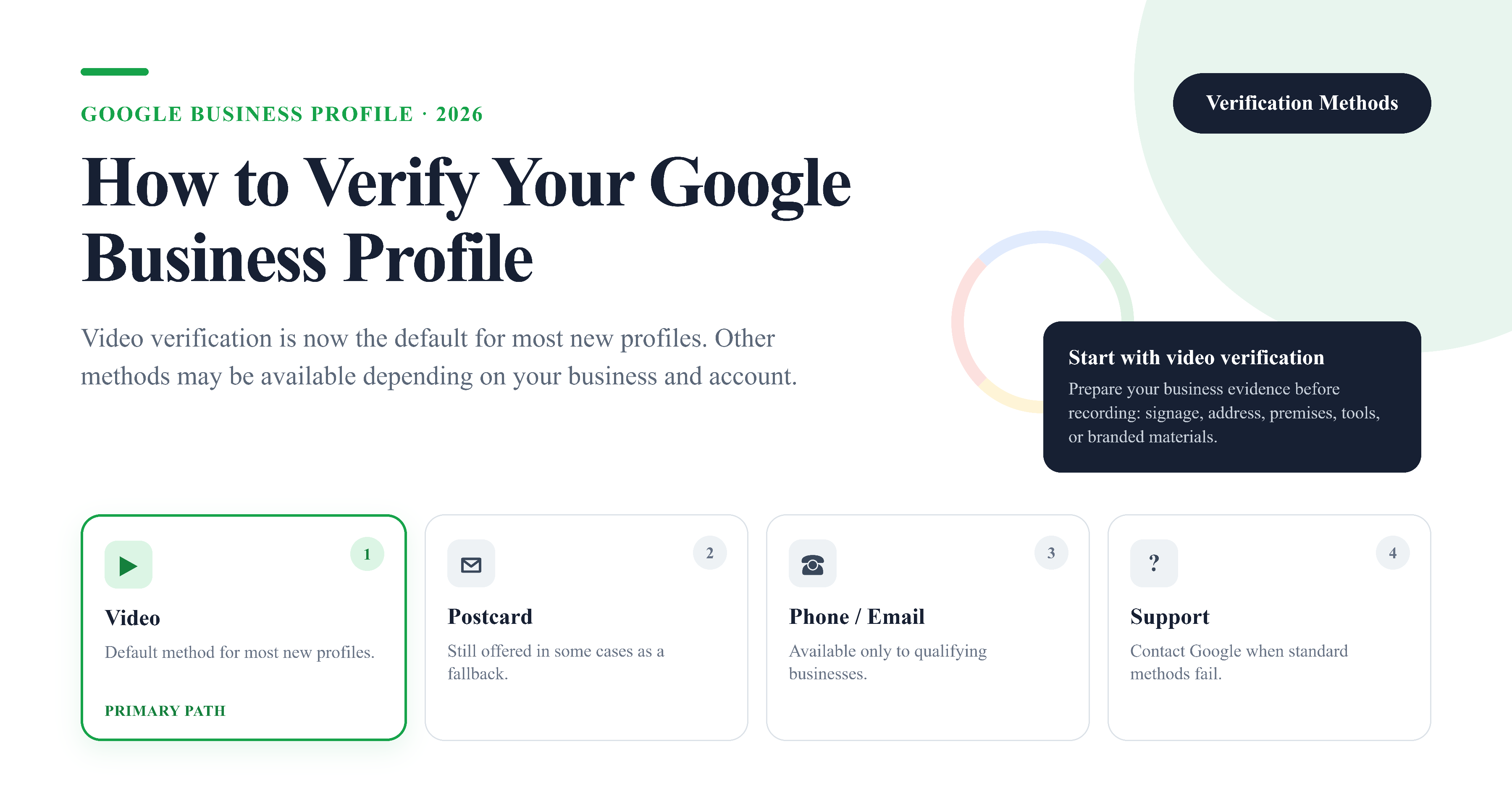
Verification is the one step you cannot skip, work around, or delay. And in 2026, the process has changed. Video verification is now the default for most new profiles. The postcard method is still available but no longer primary. Phone and email verification is limited to a narrow set of businesses that qualify.
This guide covers every verification method, what Google is actually looking for in each one, and exactly what to do when the process stalls.
Key Takeaways
- Video verification is the default method in 2026. If your business is real and you have physical evidence of it, passing is straightforward.
- The video does not need to be polished. It needs to show your business exists: signage, premises or work environment, and business materials.
- Postcard verification is still offered but is no longer the primary path. Expect it as a fallback, not the default.
- In the verification cases I have reviewed, address mismatches and missing business evidence are the two rejection causes I see most often. Both are avoidable with ten minutes of preparation before you record.
- If all methods fail and Google keeps rejecting, contact Google support directly. That is the official path and it works.
- After verification, complete your profile immediately. The faster you give Google signals that you are a real, active business, the faster you rank.
Why Verification Matters for Local Rankings
Google verification is not a formality. It is the mechanism Google uses to confirm that a business is real, operating at the listed address, and eligible to appear in local search results.
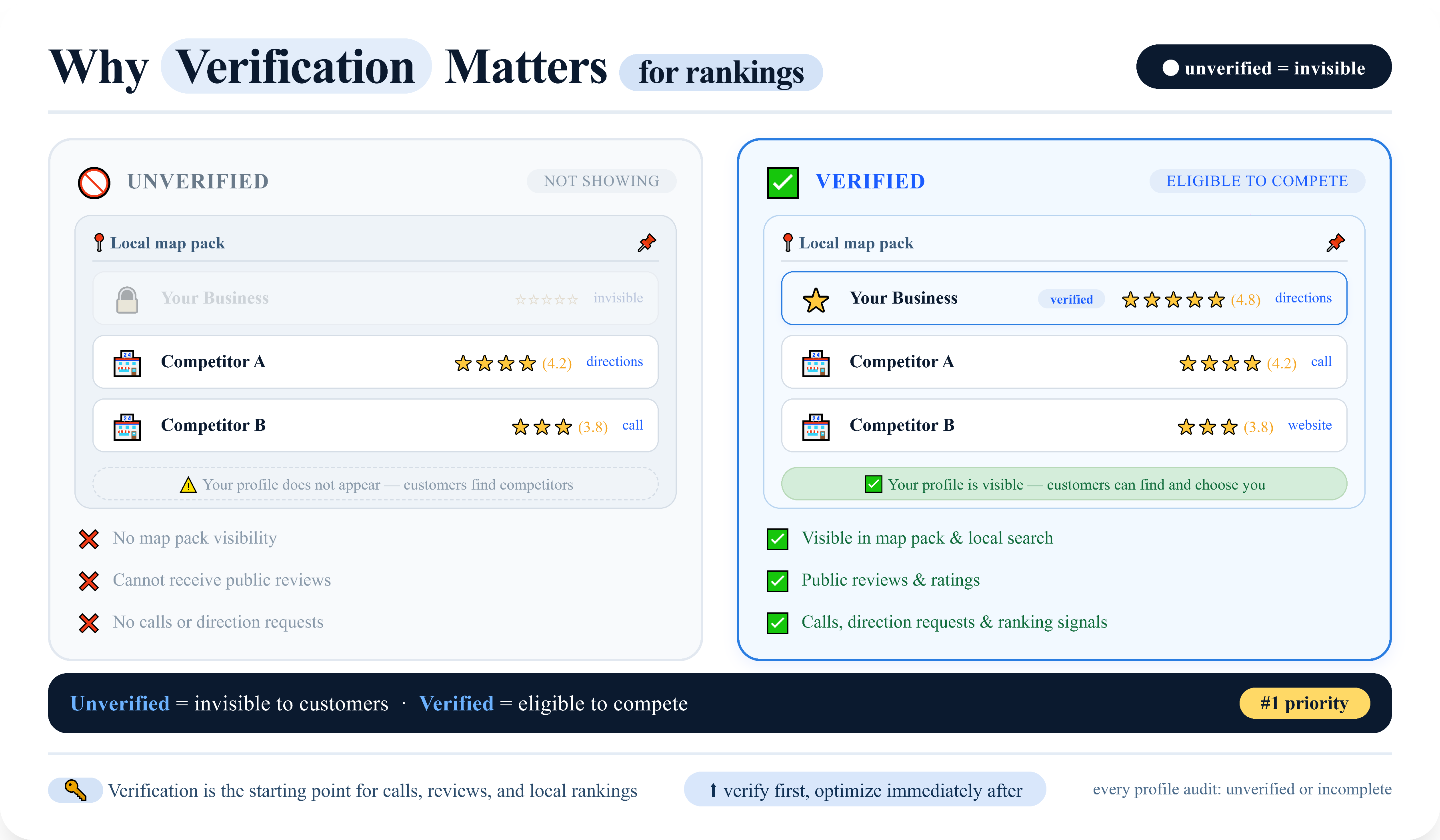
An unverified profile is invisible in the map pack. It cannot rank. It cannot receive reviews that show publicly. It cannot generate the calls and direction requests that feed into your local ranking signals over time.
Verification is also the starting point for everything else. Every profile I have audited that was struggling to generate calls had at least one of two problems: either it was not verified, or it was verified but left incomplete immediately after.
The stakes are direct: unverified means invisible to customers. Verified means eligible to compete. Getting through verification as fast as possible is the first priority for any new profile.
Video Verification: The Default Method in 2026
Video verification is now how Google verifies the majority of new Google Business Profile listings. It replaced postcard as the primary method because it is harder to fake and faster for Google to review.
Across the GBP audits and verification cases I have worked through, the breakdown looks like this:
| Verification Method | Share of Cases |
|---|---|
| Video verification | ~65% |
| Postcard | ~22% |
| Phone or email | ~8% |
| Support-assisted | ~5% |
Your odds of hitting video are high. Plan for it first.
The good news: if your business is real, passing video verification is not difficult. Google is not looking for a professionally produced video. It is looking for evidence that your business genuinely exists where you say it does.
What to show in the verification video:
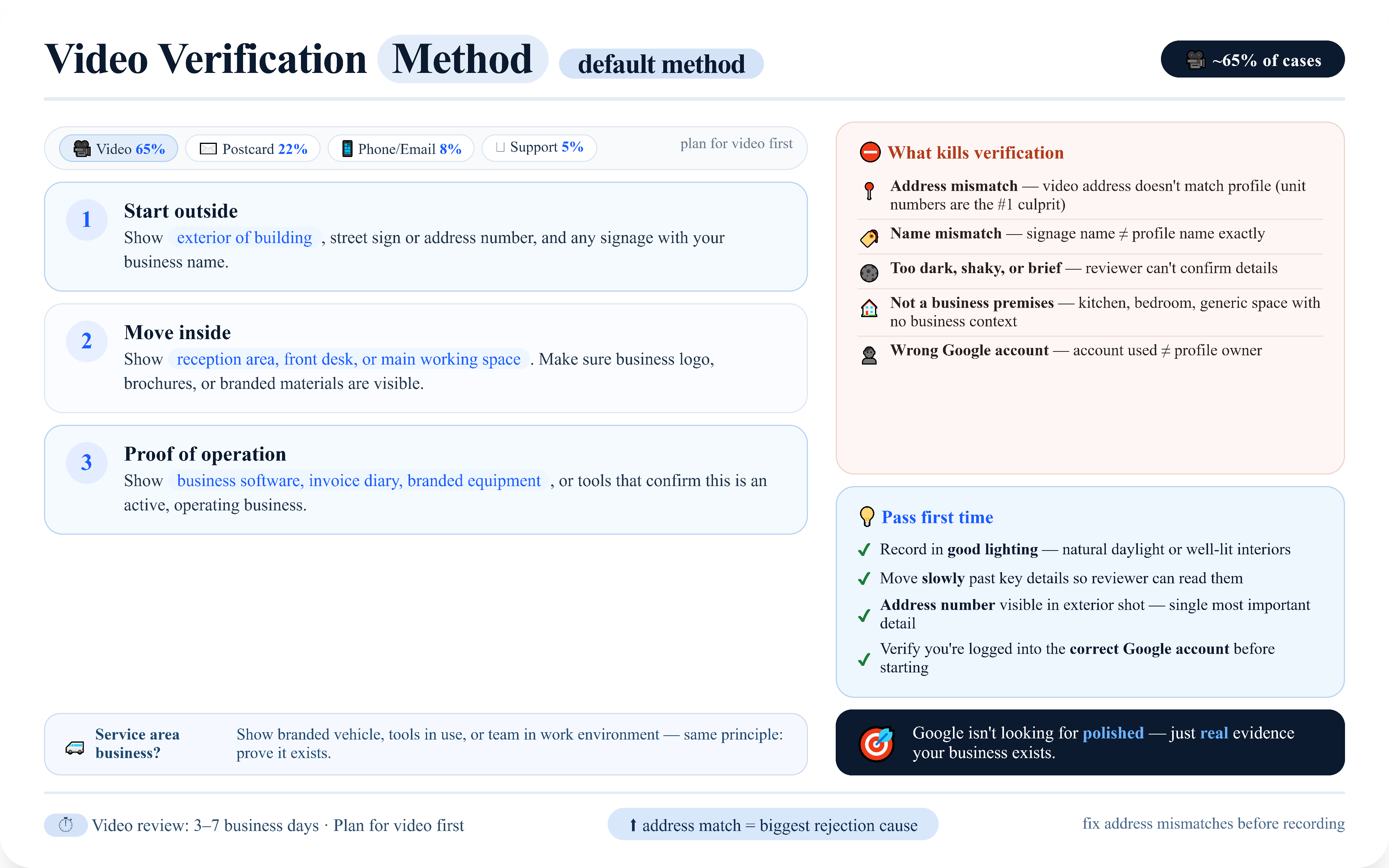
Google provides step-by-step prompts during the recording process. Follow them in order. The typical flow for a storefront or office-based business is:
- Start outside. Show the exterior of your building, the street sign or address number, and any signage that identifies your business name.
- Move inside. Show the reception area, front desk, or main working area. If you have a business logo on the wall, brochures, branded materials, or a reception sign, make sure they are visible.
- Show proof of business operation. This could be a computer with your business software open, an invoice diary, a branded reception desk, tools and equipment with your business name on them, or any materials that confirm this is an active, operating business.
For service area businesses without a storefront, show your branded vehicle, your tools and equipment in use, and yourself or your team in your work environment. The principle is the same: prove the business exists and is operating.
What kills a video verification:
- The address shown in the video does not match the address listed on the profile. This is the rejection cause I see more than any other — and it almost always comes down to a unit number missing from the profile, or a business that recently moved and did not update the listing first.
- The business name on signage or materials does not match the profile name exactly.
- The video is too dark, too shaky, or too brief for the reviewer to confirm the details.
- The location shown in the video is clearly not a business premises: a kitchen, a bedroom, or a generic space with no business context.
- The Google account used to submit the verification is different from the account that owns the profile.
Practical tips for passing first time:
- Record in good lighting. Natural daylight or well-lit interiors work. Avoid dim spaces where signage is hard to read.
- Move slowly past key details. The reviewer needs to read your business name and see your premises clearly.
- Make sure your address number is visible in the exterior shot. This is the single most important detail.
- Check that the account you are logged into matches the account that owns the GBP profile before starting.
Postcard Verification: When It Is Offered
Postcard verification is still available in 2026 but it is no longer the method Google defaults to for most businesses.
When postcard verification is offered, Google mails a card with a five-digit PIN to the business address listed on the profile. You enter the PIN in your GBP dashboard to complete verification. The card typically arrives within 5 to 14 days, though delays of up to 30 days are not uncommon in some regions.
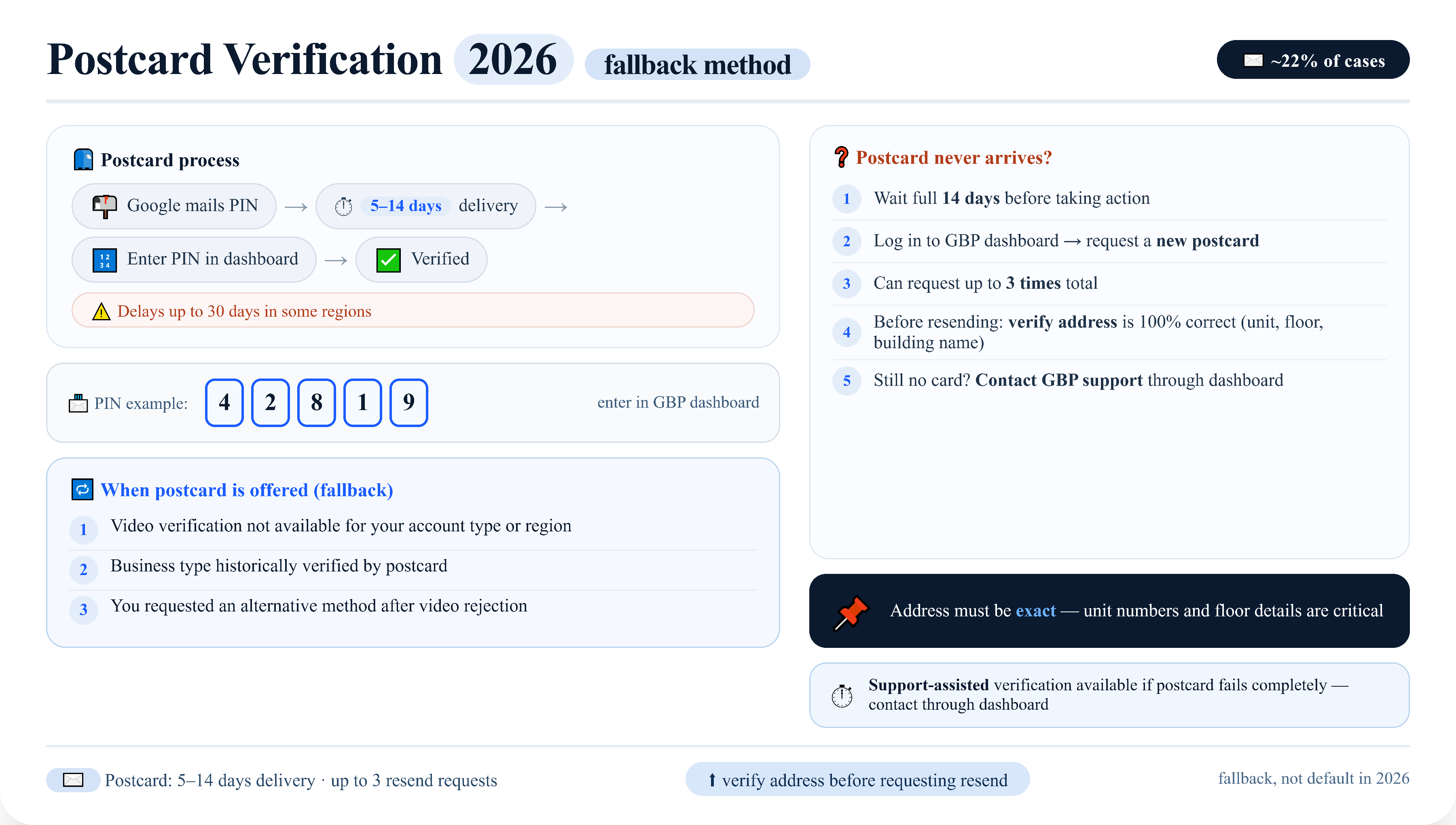
Google tends to offer postcard verification as a fallback when:
- Video verification is not available for your account type or region
- The business type is one Google has historically verified by postcard
- You have requested an alternative method after a video rejection
If your postcard never arrives:
Wait the full 14 days before taking action. After that, log in to your GBP dashboard and request a new postcard. You can do this up to three times. Make sure the address on your profile is exactly correct including unit numbers, floor numbers, and any building name before requesting a resend.
If the postcard still does not arrive after multiple attempts, contact Google Business Profile support through the dashboard and explain the situation. They can sometimes verify the business through the support process directly.
Phone and Email Verification: Which Businesses Qualify
Phone and email verification is the fastest method when it is available, but Google limits it to a small set of eligible businesses.
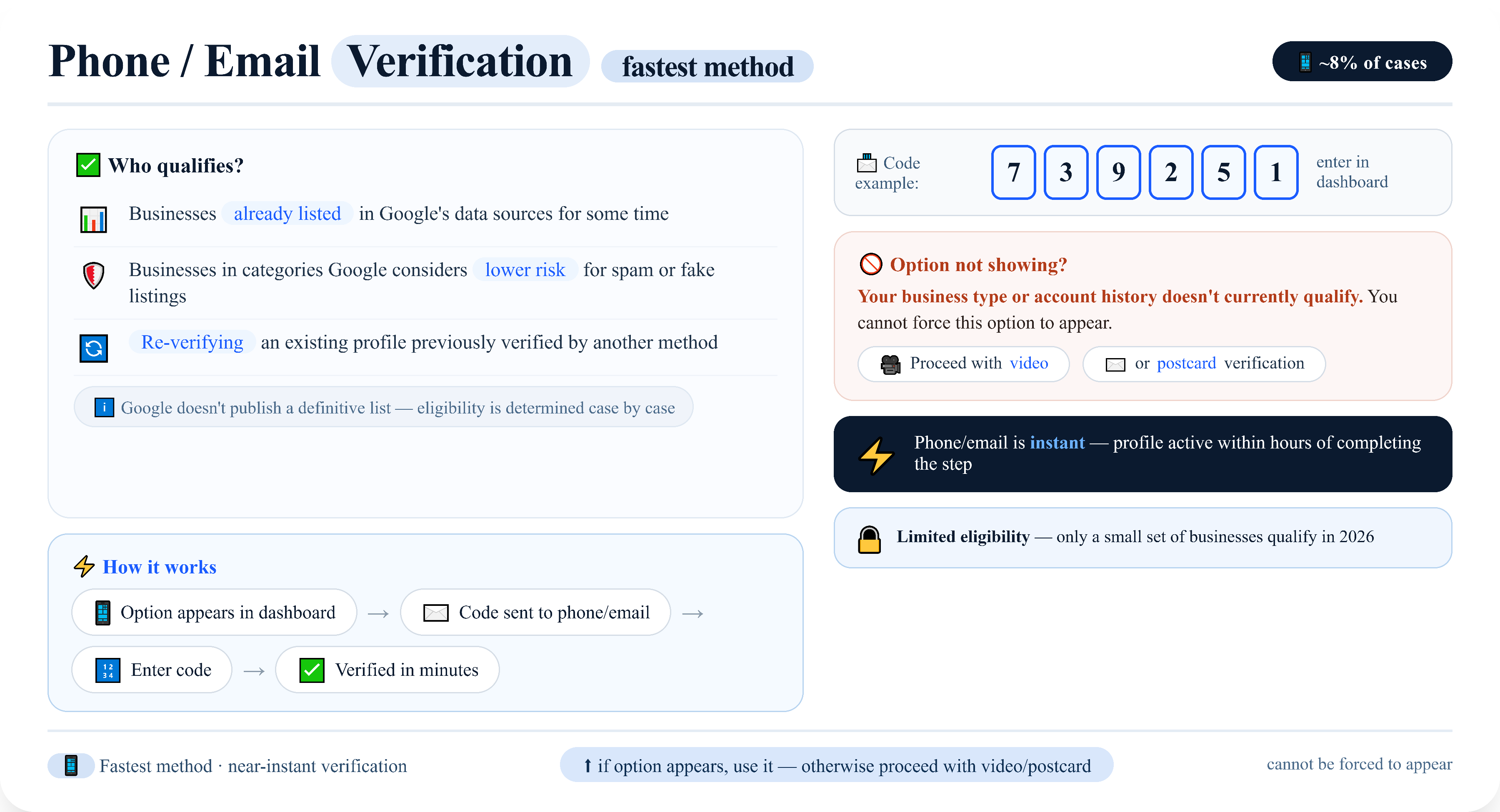
Google does not publish a definitive list of which business types qualify. In practice, phone and email verification tends to be available for:
- Businesses that have been listed in Google’s data sources for some time
- Businesses in categories Google considers lower risk for spam or fake listings
- Re-verifying an existing profile that was previously verified by another method
If phone or email verification is offered, you will see it as an option in the verification step of your GBP dashboard. The process is straightforward: Google sends a code to your listed phone number or email address, and you enter it to complete verification.
If this option is not showing for your profile, it means your business type or account history does not currently qualify. You cannot force it to appear. Proceed with video or postcard verification instead.
Bulk Verification for Multiple Locations
If you manage 10 or more business locations under the same brand, you can apply for bulk verification through Google Business Profile’s chain verification process.
Bulk verification allows you to verify all locations at once rather than going through the process individually for each one. It is designed for franchises, chains, and multi-location businesses managed through a single Google account or Business Profile Manager.
How to apply for bulk verification:
- Make sure all locations are added to your Business Profile Manager account.
- Go to the verification section and look for the option to verify a chain or multiple locations.
- Fill in the bulk verification form with your business details, the number of locations, and your contact information.
- Google reviews the application. This typically takes 1 to 2 weeks.
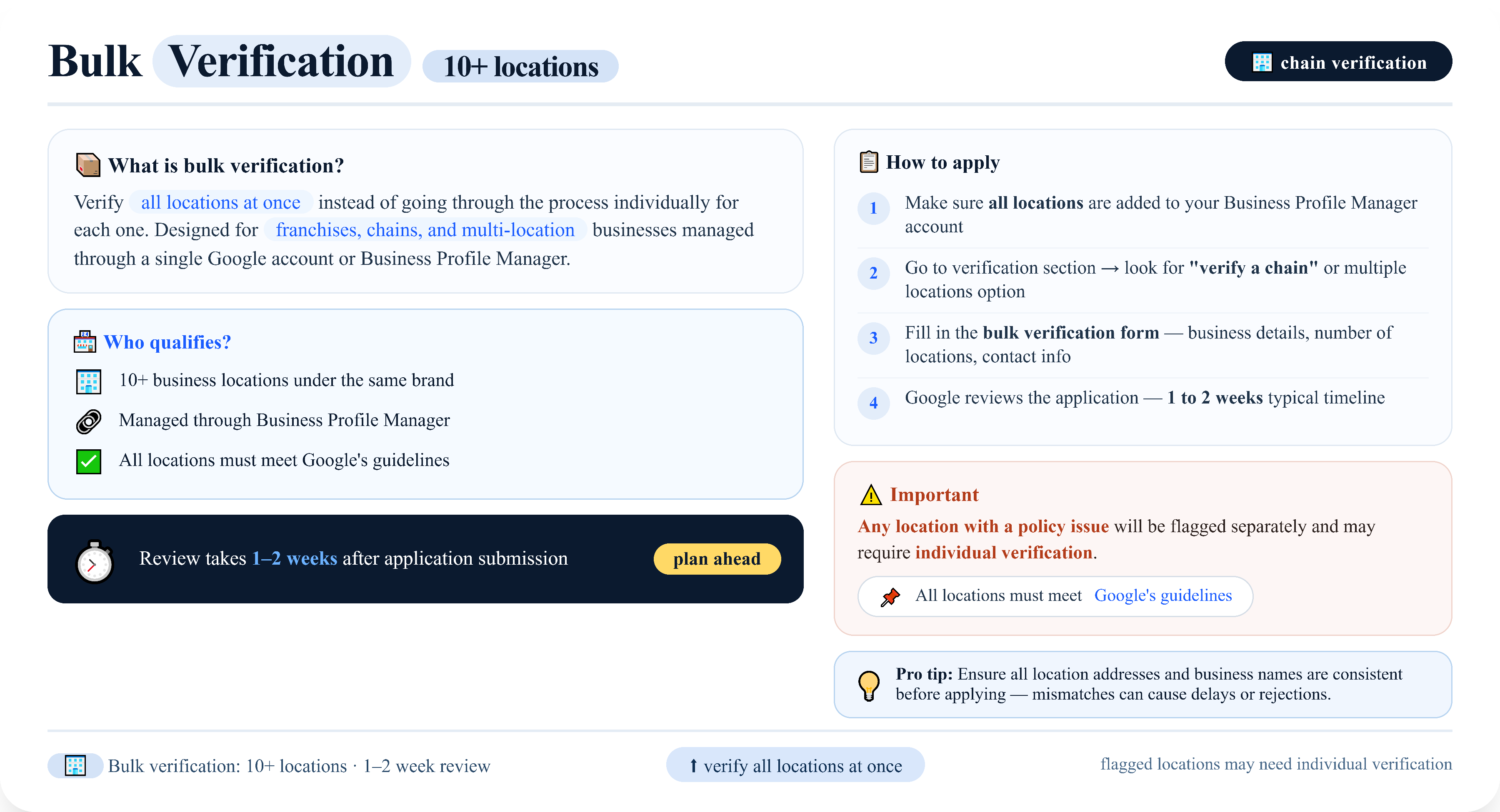
Bulk verification requires that all locations meet Google’s guidelines. Any location that has a policy issue will be flagged separately and may require individual verification.
What to Do When All Methods Fail
Sometimes a business is real, the address is correct, the video is clear, and Google still keeps rejecting. I have seen this happen even with well-established businesses. In most cases, the cause turns out to be either a flagged Google account or an existing duplicate profile at the same address that the owner did not know about. It is frustrating, but there is a clear path through it.
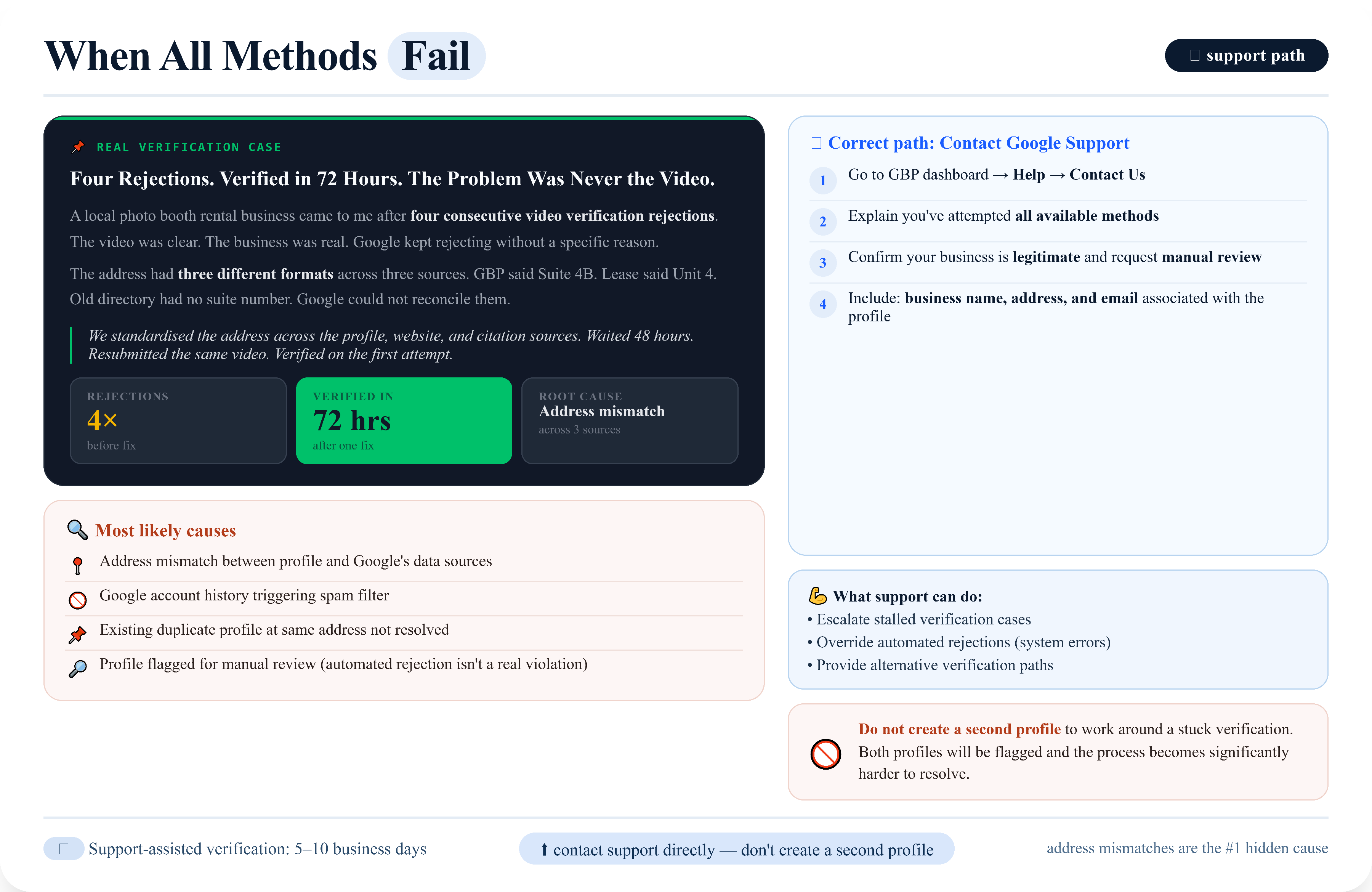
Four Rejections. Verified in 72 Hours. The Problem Was Never the Video.
A local photo booth rental business came to me after four consecutive video verification rejections. The video was clear. The business was real. Google kept rejecting without a specific reason in the dashboard.
When I reviewed the profile, the address had three different formats across three sources. The GBP listing said Suite 4B. Their lease said Unit 4. An old directory listing had no suite number at all. Google could not reconcile them.
We standardised the address across the profile, website contact page, and the three citation sources. Waited 48 hours. Resubmitted the same video. Verified on the first attempt.
The rejection was never about video quality. It was a three-way address mismatch Google could not resolve on its own.
The most likely causes when a legitimate business keeps getting rejected:
- There is a mismatch between the address on the profile and the address Google has on record from other data sources
- The Google account being used has a history that is triggering a spam filter
- There is an existing profile at the same address that has not been resolved
- Google’s system has flagged the profile for manual review and the automated rejection is not reflecting a real violation
The correct path when all methods fail is to contact Google support directly.
Go to your GBP dashboard, select Help, then Contact Us. Explain clearly that you have attempted verification through the available methods, that your business is legitimate, and that you are requesting manual review or support with the process. Include your business name, address, and the email associated with the profile.
Google support can escalate stalled verification cases, override automated rejections where there is a system error, and provide alternative verification paths for businesses that do not fit the standard methods.
Do not create a second profile to work around a stuck verification. It will result in both profiles being flagged and the process becoming significantly harder to resolve.
How Long Verification Takes: Realistic Timelines
Verification timelines vary by method and by how quickly Google’s reviewers process your submission.
Video verification: Most video submissions are reviewed within 3 to 7 business days. Some are processed faster, within 24 to 48 hours. Complex cases or submissions that require a second look can take up to 2 weeks.
Postcard verification: 5 to 14 days for delivery in most regions. Up to 30 days in some countries or remote areas. Add 1 to 2 days after entering the PIN for the profile to become fully active in search.
Phone and email verification: Near-instant once the code is received. The profile typically becomes active within a few hours of completing the step.
Bulk verification: 1 to 2 weeks for Google to review and approve the chain verification application.
Support-assisted verification: Timelines vary. Straightforward cases escalated through support often resolve within 5 to 10 business days. Complex cases can take longer.
Plan for video verification to take up to 2 weeks from submission to full profile activation. Use that time to prepare everything you will complete immediately after verification clears.
After Verification: The First 5 Things to Do
The moment your profile is verified, your priority is to give Google as many signals as possible that this is a real, active, established business. Do not leave the profile sitting empty.
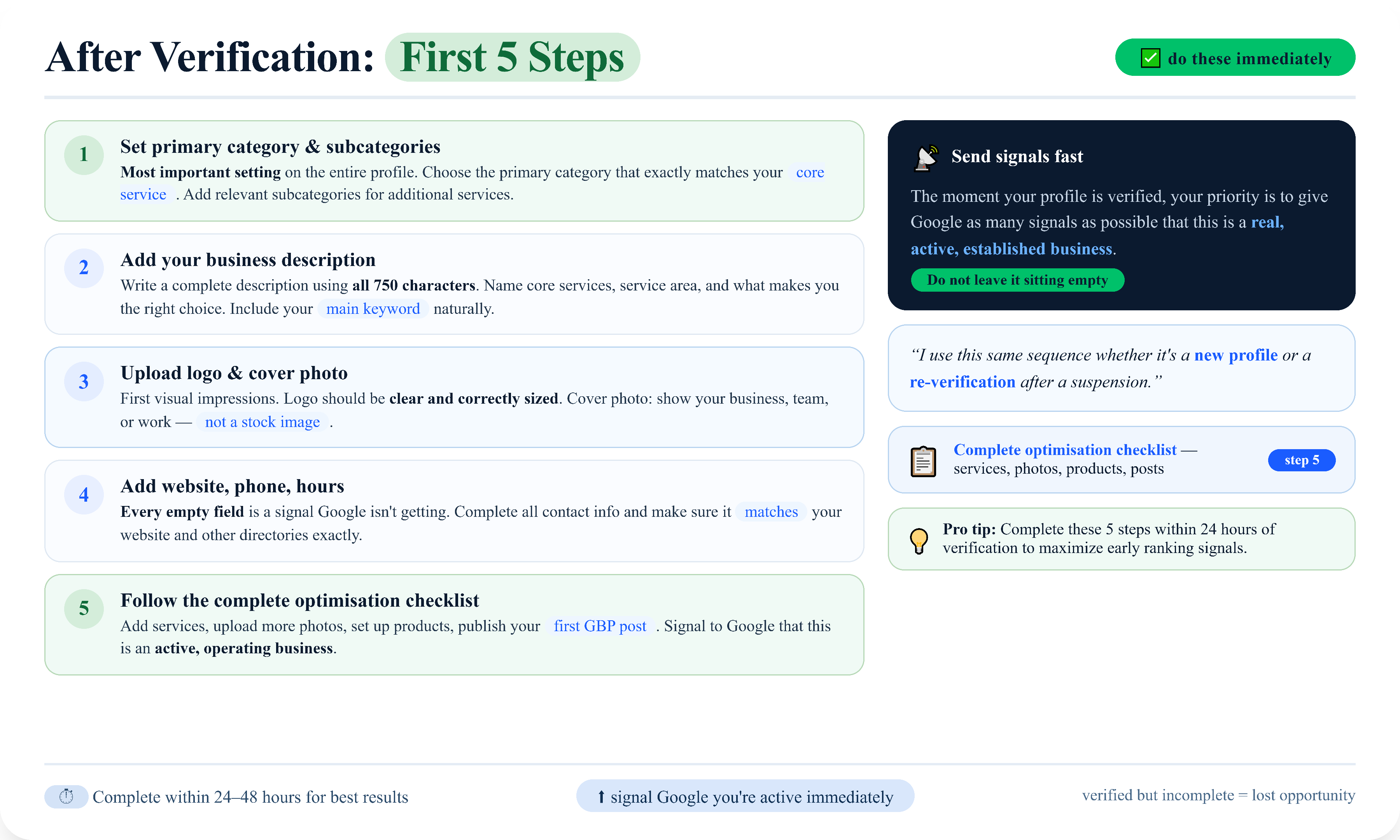
Here is the order I work through immediately after a profile is verified. I use this same sequence whether it is a new profile or a re-verification after a suspension:
1. Set your primary category and subcategories. This is the most important setting on the entire profile. Choose the primary category that exactly matches your core service. Add relevant subcategories for your additional services. Do not skip this step or come back to it later.
2. Add your business description. Write a complete description using all 750 characters. Name your core services, your service area, and what makes your business the right choice for the customer. Include your main keyword naturally.
3. Upload your business logo and cover photo. These are the first visual impressions customers see. Your logo should be clear and correctly sized. Your cover photo should show your business, your team, or your work. Not a stock image.
4. Add your website, phone number, and business hours. Every field that is empty is a signal Google is not getting. Complete all contact information and make sure it matches exactly what is on your website and in any other directories where your business is listed.
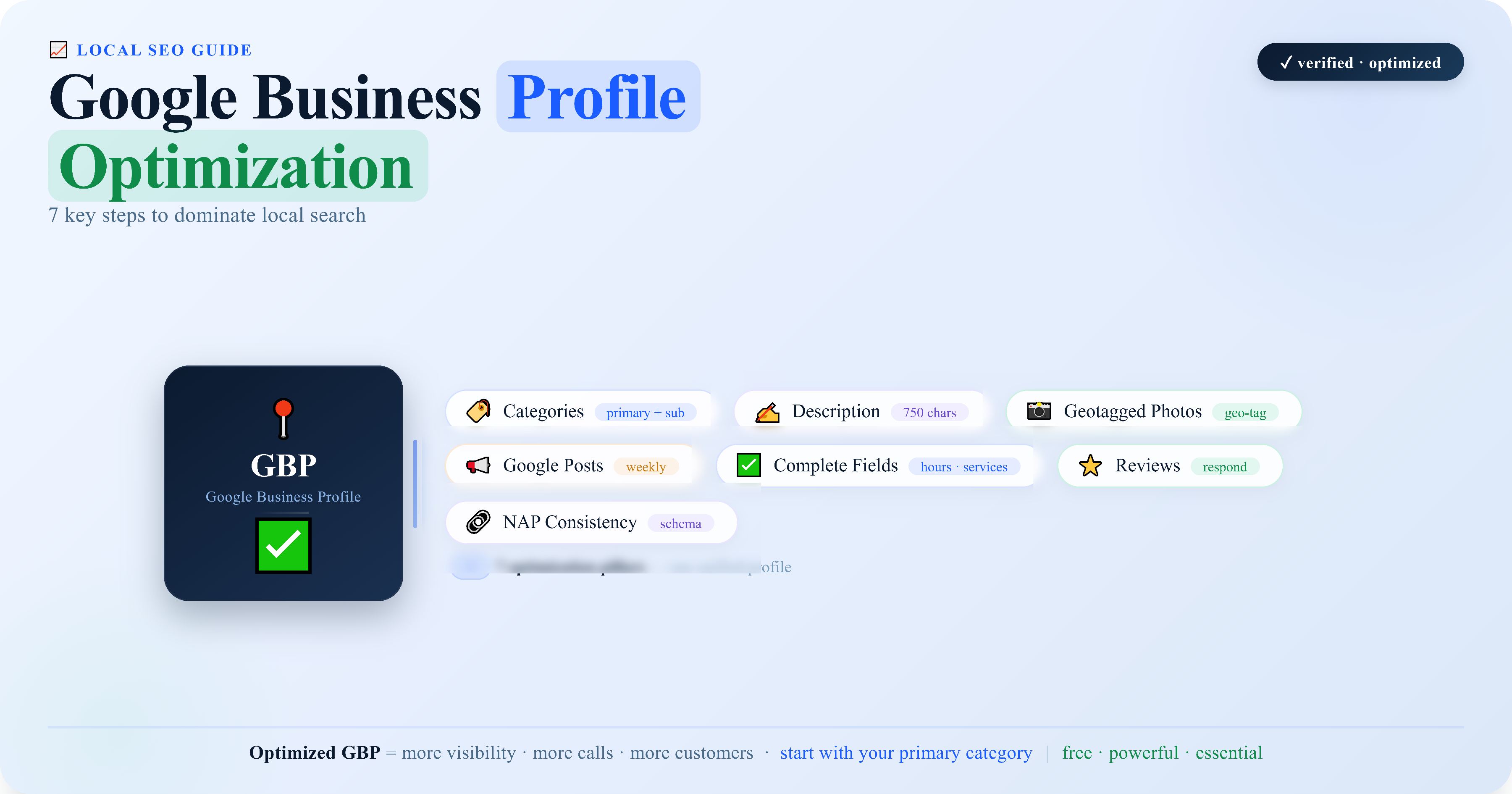
5. Follow the complete optimisation checklist. After the critical fields are done, work through the full profile systematically. Add services, upload more photos, set up your products if relevant, and publish your first GBP post. The goal is to signal to Google as quickly as possible that this profile belongs to an active, operating business.
For the complete step-by-step checklist, follow the local SEO checklist for small businesses.
Verification Troubleshooting Checklist
Work through this before contacting support.
| Problem | Check This First |
|---|---|
| The video keeps getting rejected | Does the address in the video match the profile address exactly? Is your business name visible on signage or materials? |
| The postcard never arrived | Has it been 14 days? Request a resend. Check the address on the profile is complete including unit number. |
| No verification option appearing | Is the profile fully created and saved? Is the correct Google account logged in? |
| Verification approved but profile not showing | Has it been 48 hours since approval? Check for a suspension notice in the dashboard. |
| Stuck in a loop after multiple rejections | Contact Google Business Profile support directly through Help > Contact Us. |
| Account flagged or profile restricted during verification | Do not create a new profile. Contact support and request a manual review. |
FAQ
How long does Google Business Profile verification take in 2026? Video verification typically takes 3 to 7 business days for Google to review. Postcard verification takes 5 to 14 days for delivery. Phone and email verification is near-instant. If you are using support-assisted verification after other methods failed, expect 5 to 10 business days.
What does Google look for in the verification video? Google wants to see that your business is real and operating at the address listed on your profile. Show the exterior of your building with the address number visible, your interior working space, and any signage or branded materials that confirm your business name. For service area businesses with no storefront, show your branded vehicle, tools, and work environment.
Can I verify a Google Business Profile without a physical address? Yes. Service area businesses can verify without showing a physical address to the public. However, you will still need a verifiable address for the verification process itself, and hiding your address does affect your local ranking. Read the full guide to GBP for service area businesses for the complete SAB setup.
What happens if my verification video is rejected? Read the rejection reason in your dashboard. The most common causes are an address mismatch, the business name not being visible, or a location that does not look like a business premises. Correct the specific issue and resubmit. If repeated submissions are rejected without a clear reason, contact Google support.
Why is my profile not showing in search after verification? Verification is the first step, not the only step. After verifying, your profile still needs to compete for local rankings based on category, reviews, profile completeness, and proximity to the searcher. A newly verified profile can take 2 to 6 weeks to appear consistently in the map pack. Read the full guide on why your GBP is not showing in search results for a complete breakdown.
Can a competitor get my profile unverified? No. Once a profile is verified, it cannot be unverified by a third party. Competitors can report your profile for policy violations, but verification status itself is controlled entirely by Google and the profile owner.
Verified But Still Not Getting Calls?
If your profile isn’t showing consistently in the map pack or generating leads, something specific is holding it back. Get a GBP audit and discover exactly what to fix first.