
ChatGPT now shows business profiles to people who ask for a local service or a product. If someone asks ChatGPT for a plumber in Austin, a business with a profile can show up with its name, what it does, and how to reach it.
This guide shows you how to create one and set it up right. It follows the real steps in Business Hub, with screenshots from an example plumbing business, brightlineplumbing.com, so you can follow along.
One thing to know before you start. ChatGPT Business Profiles are in beta. Some steps and options can change by business and country. And if you run a local shop or restaurant outside the United States, you cannot create a new listing today. You can only claim a listing that already exists in the U.S. If you sell online, you can add a new listing from anywhere ChatGPT is available. I say this first because it decides whether the rest of this guide applies to you.
I recorded a short video on this too. It walks you through the steps. Two things have changed since I recorded it. First, verification is two separate checks, not one, and the video only shows the first. Second, claiming your profile does not mean ChatGPT will show you more. OpenAI says plainly that it does not guarantee placement. The steps below are the current ones.
What is a ChatGPT Business Profile?
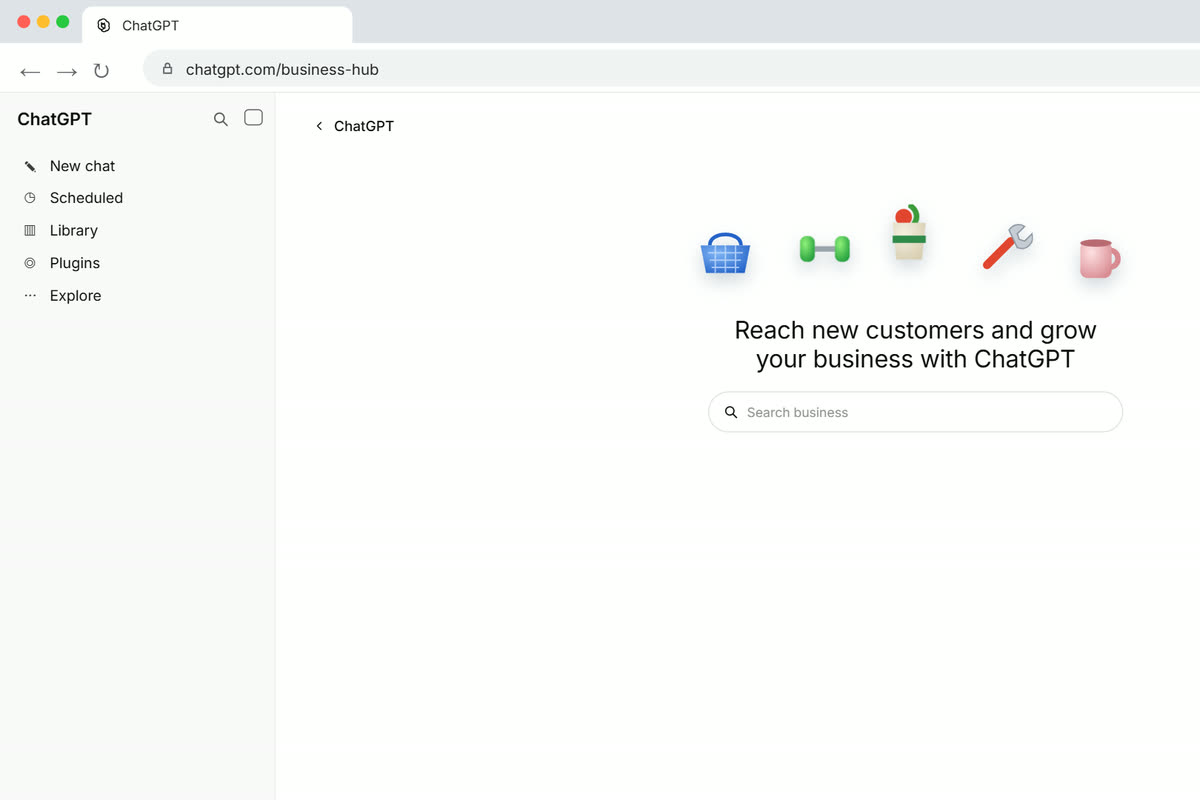
“Businesses in ChatGPT” is the name. Business Hub is the dashboard where you manage it. Start at chatgpt.com/business-hub. Claiming is free. You do not need an Ads account or an Enterprise plan.
When someone asks ChatGPT for something your business does, ChatGPT can show your profile card with your name, description, and contact details. It is a new place to be found, next to Google, not instead of it.
Who can claim a profile?
There are two kinds of business, and two paths.
A local business, a shop, a restaurant, an office, a plumber, can claim a listing that already exists in the U.S. You cannot create a new one today.
An online business, a store, a website, a marketplace seller, can claim an existing listing or add a new one, from anywhere ChatGPT is available.
If you are outside the U.S. and you run a local business, this guide still helps you understand the process, but you will not be able to create a new listing until OpenAI opens it up. Check Business Hub to see what you are offered.
Before you start
Get these ready first, so you do not stop halfway through.
- Your website address.
- Access to your domain settings, for the DNS option, or your business email or phone, for the code option.
- Your business category in mind.
- A short description of what you do, one or two lines.
- A logo and a few photos. Square works best.
- If you sell products, your product list or your Shopify store.
Step 1: Find and claim your business
Go to chatgpt.com/business-hub. Type your business name or website in the search box.
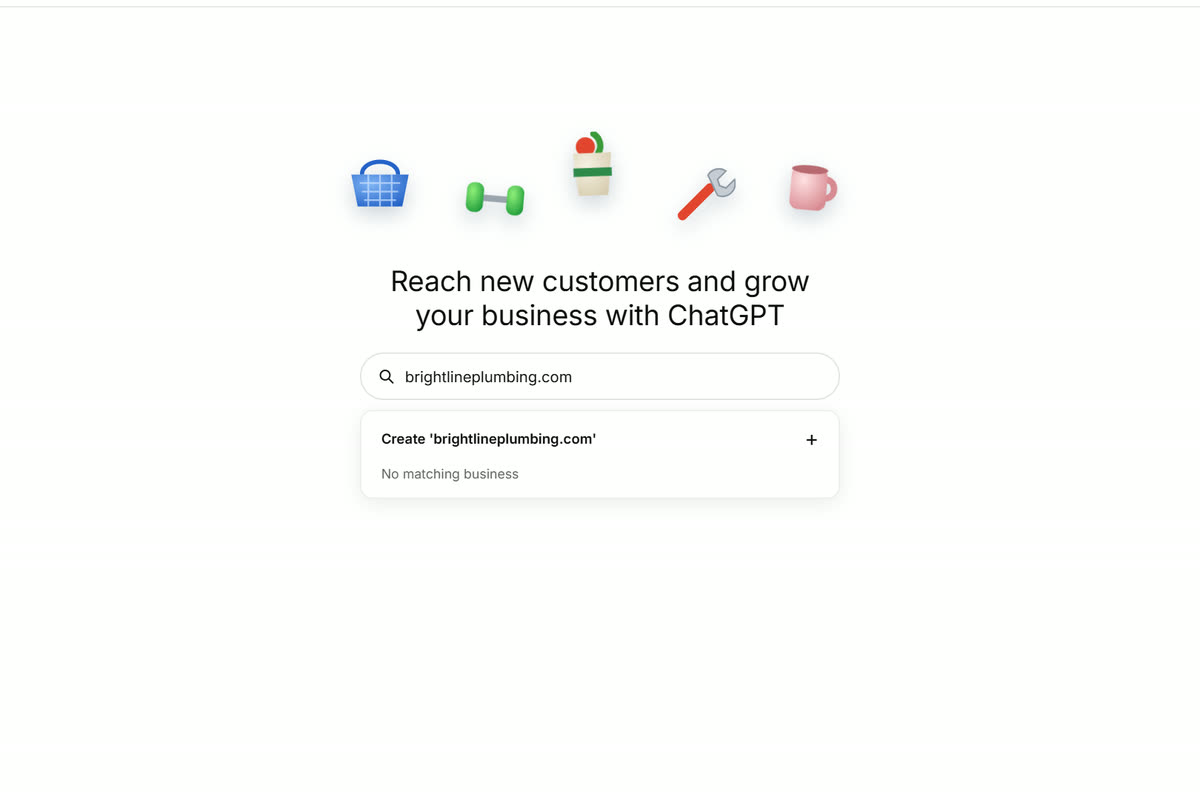
If your business shows up, check the address and claim it. If nothing matches and you sell online, click Create to add a new listing.
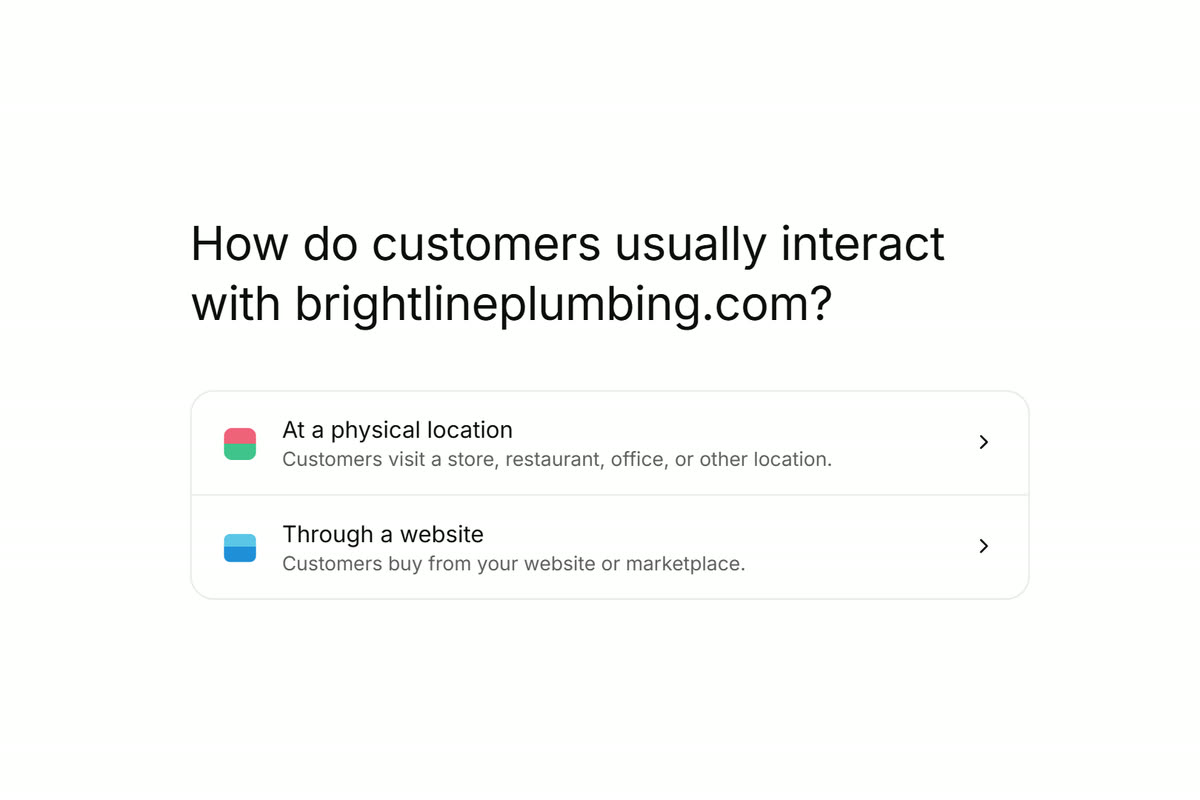
ChatGPT will ask how customers usually interact with your business: at a physical location, or through a website. Pick the one that fits. A shop or an office is a physical location. An online store is through a website.
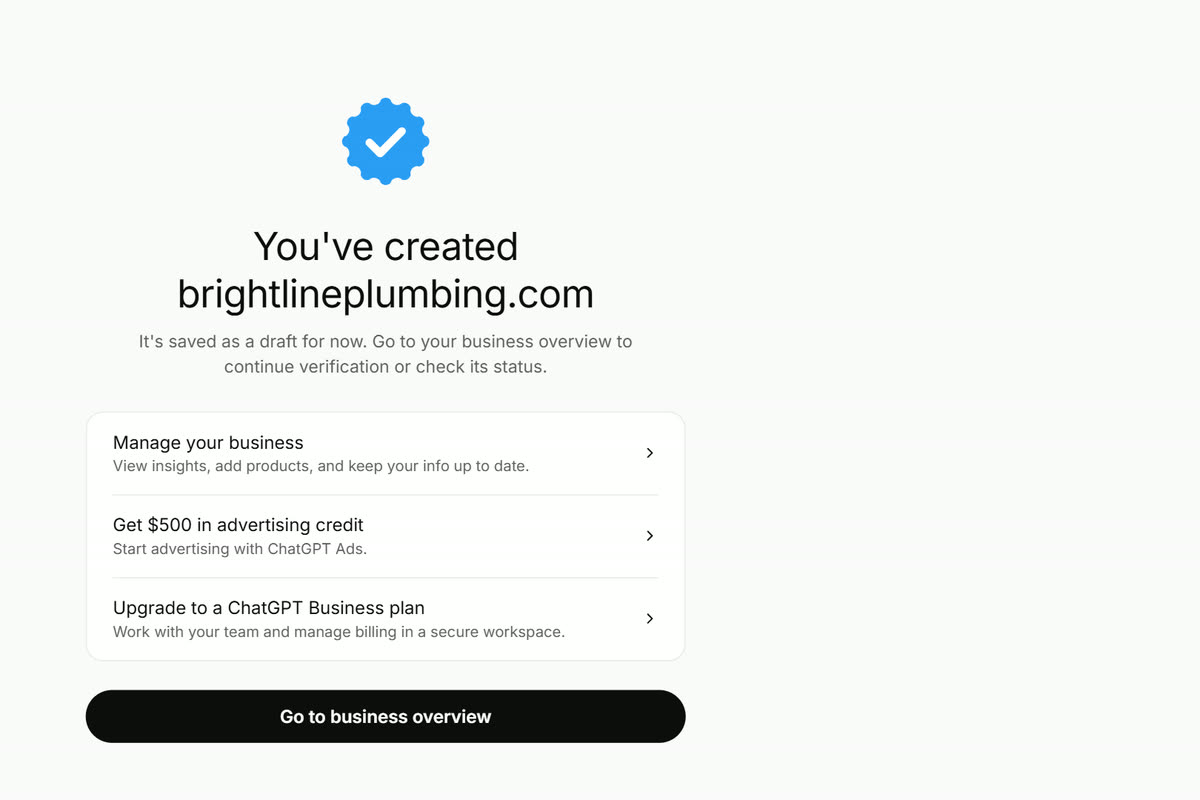
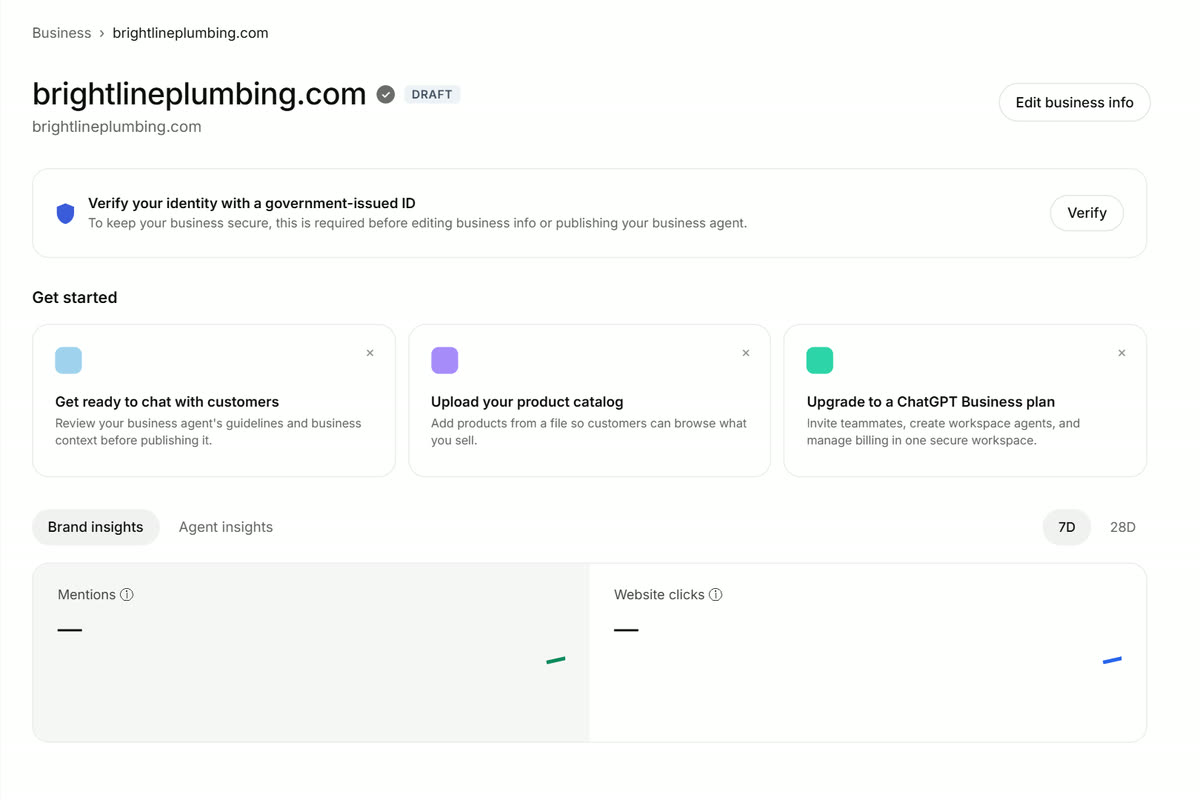
Your profile is saved as a draft at this point. You can see it in Business Hub with a DRAFT label. It is not live until verification is done.
Step 2: Verify your business
Verification is two checks, not one. The video only shows the first.
Check one proves you control the business. Pick ONE method: website domain, business phone, business email, or Shopify. They are alternatives, not steps in a row. You do not do all four.
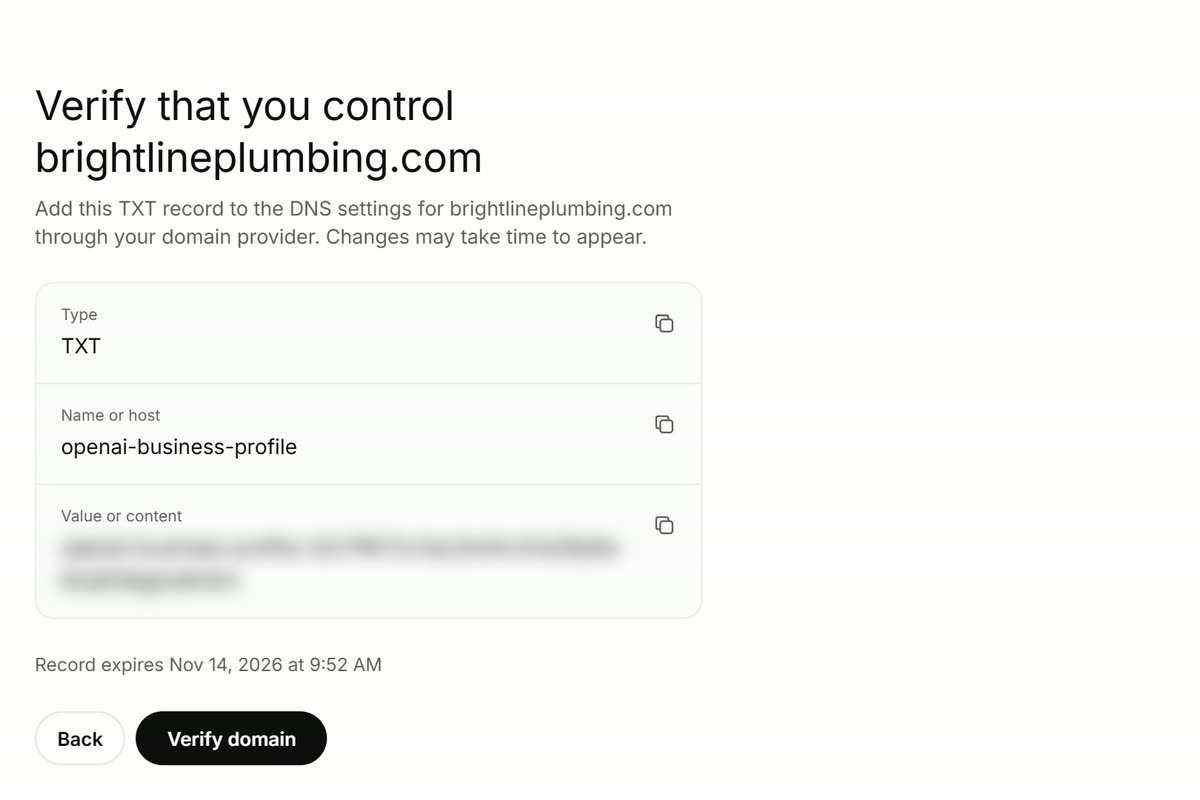
If you pick the website domain, ChatGPT gives you a TXT record to add to your DNS settings. The host is “openai-business-profile”. Copy the type, host, and value exactly as shown.
Then add that record in your domain provider. This is what it looks like on Cloudflare. Your provider’s screen may look a little different.
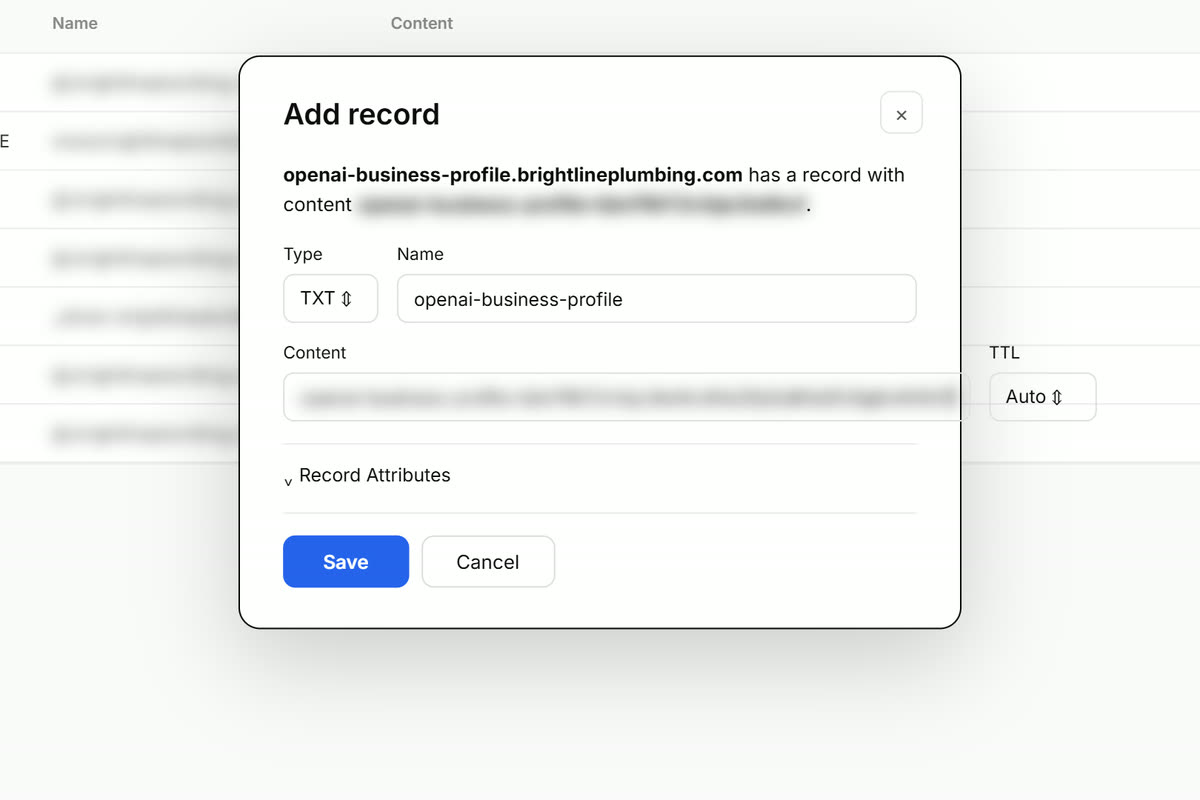
The record expires, so add it and click Verify domain the same day. Do not add it and come back next week. DNS changes can also take time to appear, up to 24 hours.
If you pick the business email, ChatGPT sends a code to your business email. Type it in to prove you control that inbox.
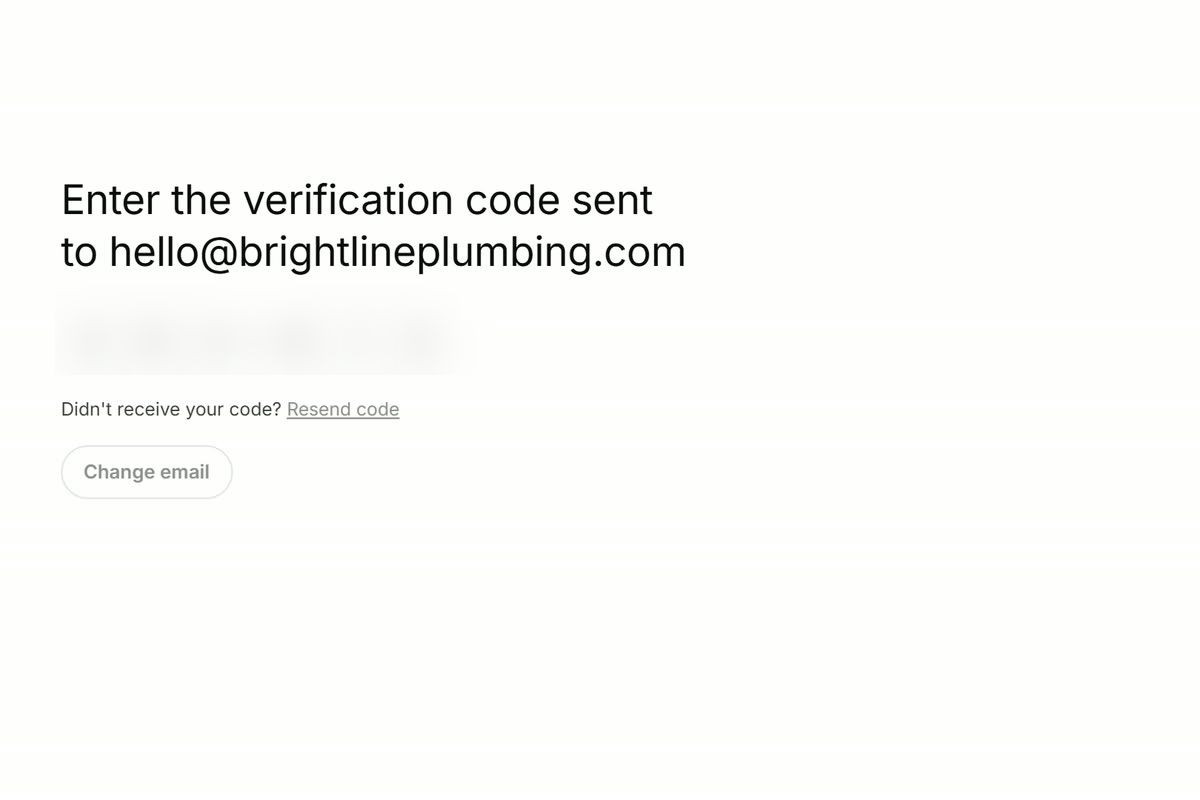
Then OpenAI reviews the claim and emails you a decision. There is no fixed time for this.
Check two is the Persona identity check. After the claim is approved, you still need to verify your identity with a government-issued ID. Business Hub says it is required before editing business info or publishing your business agent. This is the step most people miss. Persona is what opens up editing, insights, the product feed, and the blue check.
Step 3: Fill out your profile
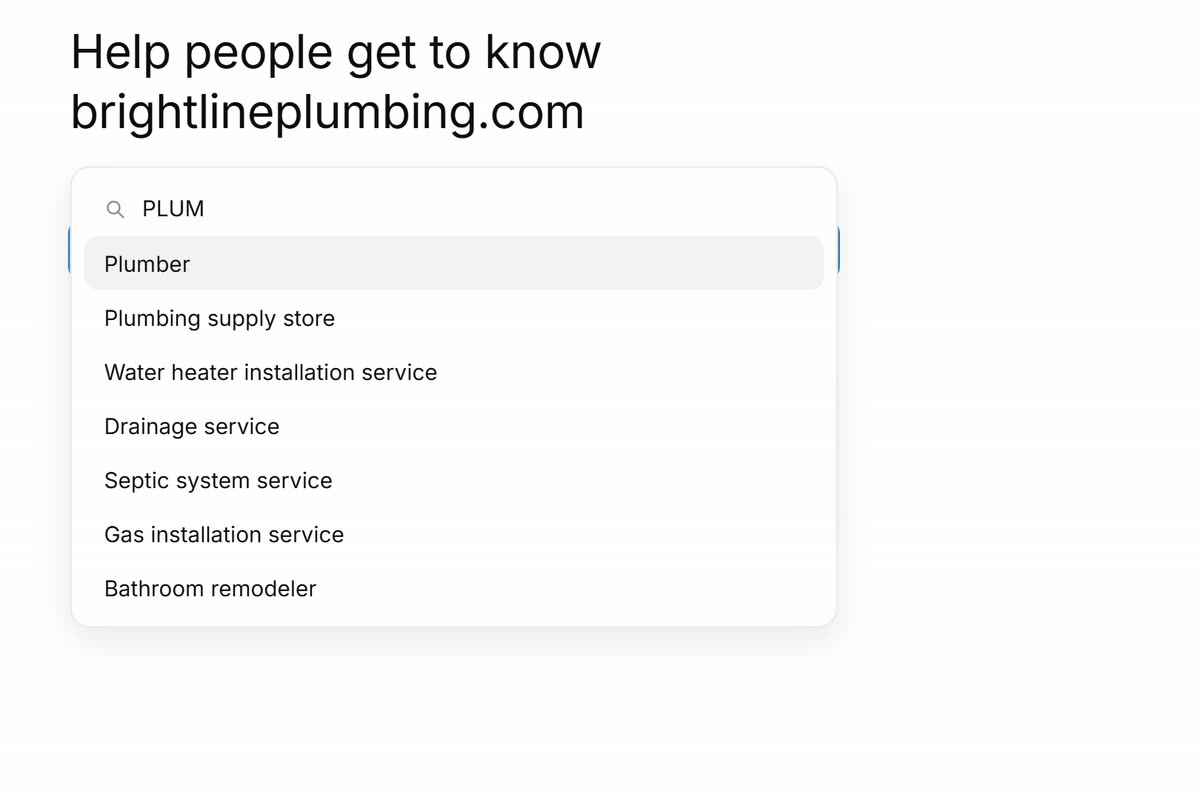
Category first. Pick one. Type a few letters and choose from the list. Picking a suggestion replaces the one you have. It does not add a second.
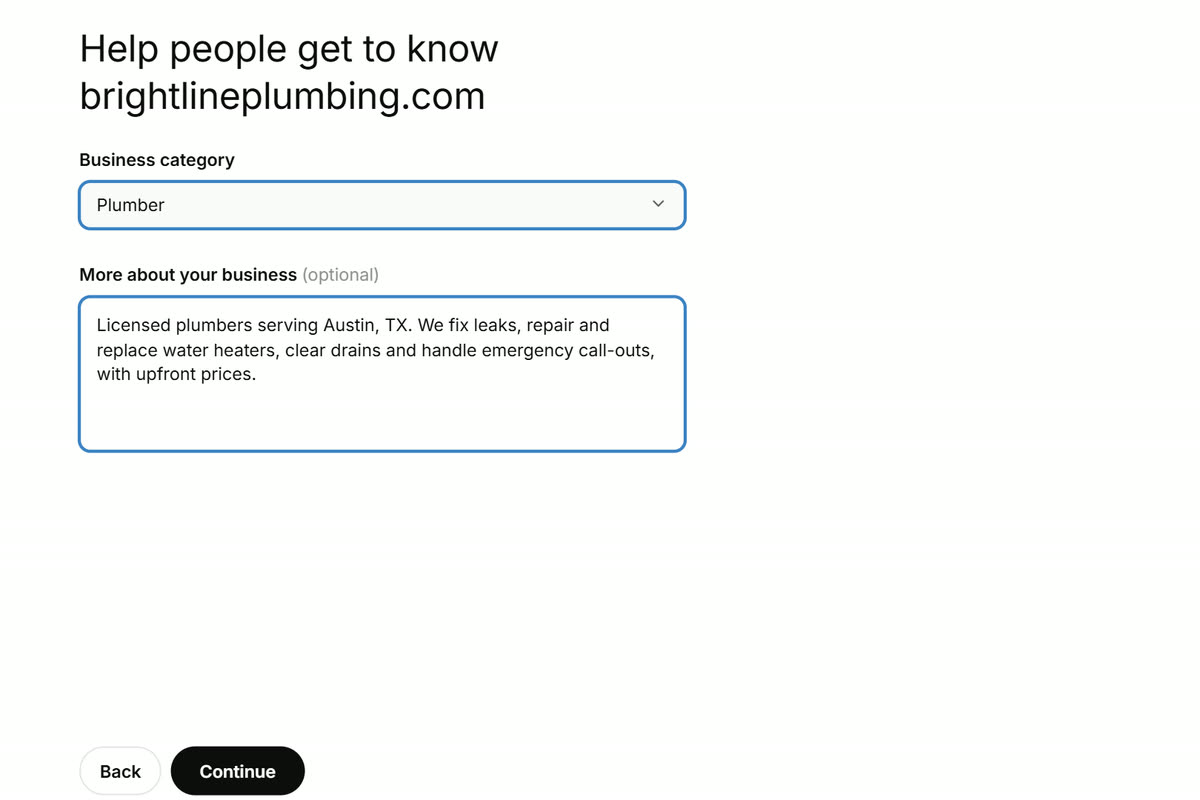
More about your business is a short field, so one or two lines is enough. Say what you do and who you serve. Here is the example from the screenshots: “Licensed plumbers serving Austin, TX. We fix leaks, repair and replace water heaters, clear drains and handle emergency call-outs, with upfront prices.”
If you want help writing the short description, the GBP Description Generator on this site writes one from your website.
Then fill in the rest: website, phone, email, address, hours. Put in what is true. Your address is public, and there is no way to hide it, so do not publish a home address just to finish the form.
Photos are cropped to squares from the center. The first photo is the cover. There is no separate logo box, so upload your logo as one of the photos.
Your business name is locked after claiming, so check the spelling before you finish.
If you sell products: the product feed
Online stores can add a product feed so customers can browse what you sell. You can upload a CSV file, use a hosted URL, or connect Shopify.
A feed needs 9 fields for each product: item ID, title, description, URL, brand, seller name, image URL, availability, and price. Titles are max 150 characters. Descriptions can be up to 5,000 characters. Feed images must be JPEG or PNG.
Connecting a feed does not mean ChatGPT will recommend your products. It only makes them available to show.
How to read your Insights
Once your profile is approved, the Insights tab shows Mentions, Website clicks, Discovery topics, and profile views. You can switch between 7 days and 28 days.
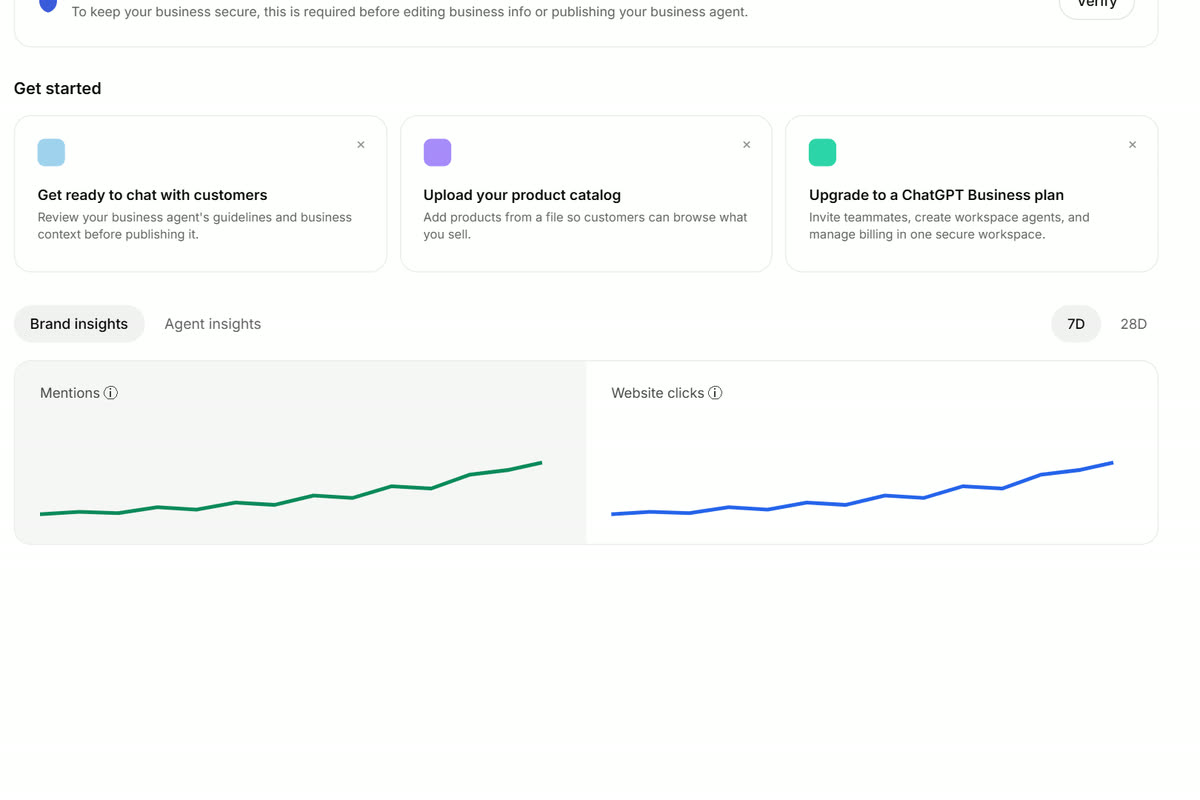
Mentions count how often ChatGPT showed or named your business. Discovery topics show the themes customers asked about. You cannot see individual prompts or conversations. If a metric is blank, it does not mean zero. ChatGPT only shows a number once enough activity has built up.
ChatGPT profile vs Google Business Profile
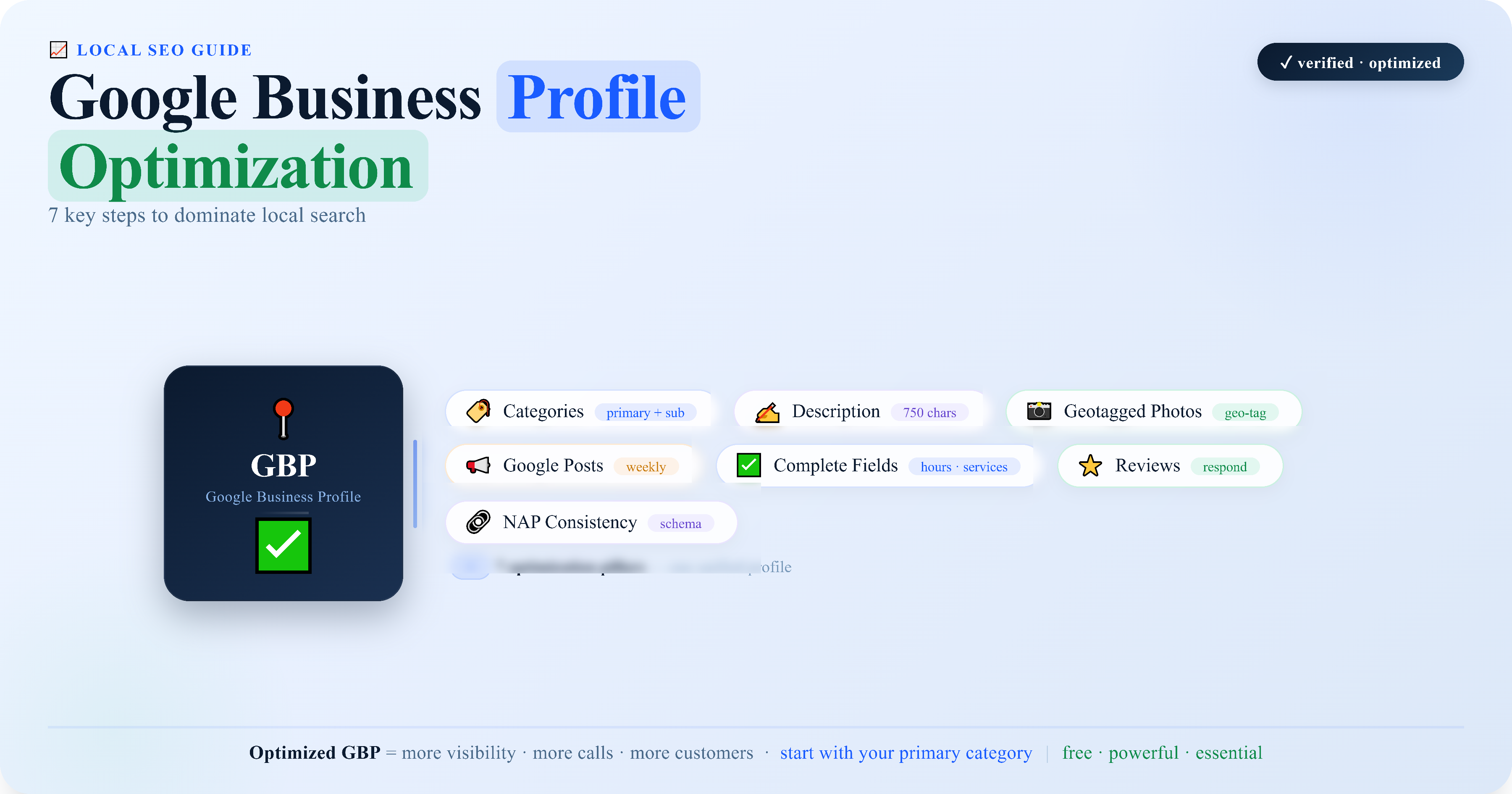
Keep both. Your Google Business Profile is still first. It has reviews, posts, service areas, a 750-character description, and one primary category plus up to 9 secondary ones. ChatGPT has one category, a short description, and no reviews or posts.
Keep the name, address, hours, and description the same in both places. If they disagree, customers will not know which one to trust.
Reviews still live on Google. If you want to know how many more 5-star reviews you need to lift your rating, use the Google Review Calculator.
6 mistakes to avoid
- Claiming the wrong listing. Check the street address before you claim.
- Treating verification as one step. It is two: the claim check, then Persona.
- Adding the DNS record and waiting. It expires. Verify the same day.
- Writing a long description. The box is short. One or two lines.
- Trying to add more than one category. You get one.
- Thinking that claiming means ChatGPT will show you more. It does not guarantee placement, recommendations, or sales.
Does it help you get mentioned?
Honest answer: claiming does not guarantee it. OpenAI says so plainly. What it does is make your business available to show, with correct details, when ChatGPT answers a question about what you do. That is worth doing, and it is free, but it is not a ranking trick.
Final checklist
- Search Business Hub and claim or create the right listing.
- Pick one verification method and finish it the same day.
- Complete the Persona identity check.
- Set one category and a short description.
- Add hours, contact details, and photos. Put your logo in the gallery.
- If you sell products, connect your feed.
- Check Insights after a few weeks, not the next day.
FAQ
Is it free to claim?
Yes. You do not need an Ads account or an Enterprise plan.
I run a local business outside the U.S. Can I create a listing?
Not today. You can only claim a listing that already exists in the U.S. Online businesses can add a new listing from anywhere ChatGPT is available.
How long does verification take?
There is no fixed time. DNS can take up to 24 hours to appear, and the claim and Persona reviews take additional time.
Do I still need a Google Business Profile?
Yes. Keep both, and keep the details the same in both.
Can I change my business name later?
No. It is locked after claiming, so check it before you finish.
If you want a full check of how your business shows up online, start with an SEO audit.
I am Babar Ali. I help small local businesses get found on Google and on ChatGPT. If you want help with that, book a 30 min call.